Code Engage Grow Interact
Creative Coding Leiden
Creative Coding Leiden is a new platform for digital creativity in Leiden. We connect creatives of all stripes and share our experiences. We aim to collaborate with cultural and educational organizations and reach out to the public.
100% creativity! Fun guaranteed!
Go places
Visit venues like Nxt Museum, Fabrique des Lumières, or Moco to experience generative art.
Next meet-up
Coming soon to a theater near you! Place and time to be announced.
Check these out
Experience the work of Dutch digital artists like Noortje Stortelder, Vera van de Seyp, Piter Pasma, or Cris Mollee.
Deep time
Look back at the long history of procedural art in the Generative Art Timeline.
Feeling adventurous?
Dive straight into the thick of it with 3D tools like Blender or TouchDesigner for multi-media.
Algoraves
Visit coding events where music and visuals are coded live, for example at Live Coding Sessions Amsterdam.
Join Creative Coding Leiden - where code sparks art and imagination takes flight.
Endless possibilities
Creative coding is a dynamic fusion of technology and artistic expression. At its core, it involves programming and computational tools to generate interactive and visually engaging experiences. With creative coding, one can explore a multitude of avenues, from crafting interactive art installations and generative music compositions to developing immersive virtual reality experiences. It's not limited to a single discipline; it bridges the realms of art, design, technology, and beyond, giving individuals the power to invent new forms of creative expression. Its applications are boundless, extending to data visualization, interactive storytelling, game design, and more. By blending the precision of coding with the spontaneity of artistry, creative coding empowers creators to push boundaries and bring innovative, captivating visions to life.
Casey Reas
Casey Reas is an American artist who uses code to create conceptual, procedural and minimal artworks. His works can viewed in galleries and museums around the world. In 2001, together with Ben Fry, he create the programming language Processing. The software library we are using on these pages, p5.js, is developed from Processing, especially for the Web. Here is a video where Casey Reas talks about his work and methods.
Daniel Shiffman
Daniel Shiffman is a computer programmer, a director of the Processing Foundation, and, like Casey Reas, an Arts professor. He runs a popular YouTube channel, The Coding Train, with instructional videos on how to program in Processing and p5.js. Here is a video showing off his educational skills.
Get started
This is a very short walk-through. It shows how to set up a p5.js project and make your first sketch in the p5.js editor.
Your First Sketch
When you make a sketch in p5,js, you first create a canvas. This is the area in which you will draw. When you open the p5.js web editor the set up and draw functions are there. Also, a white background is drawn.
function setup() {
createCanvas(400, 400);
}

function draw() {
background(220);
}
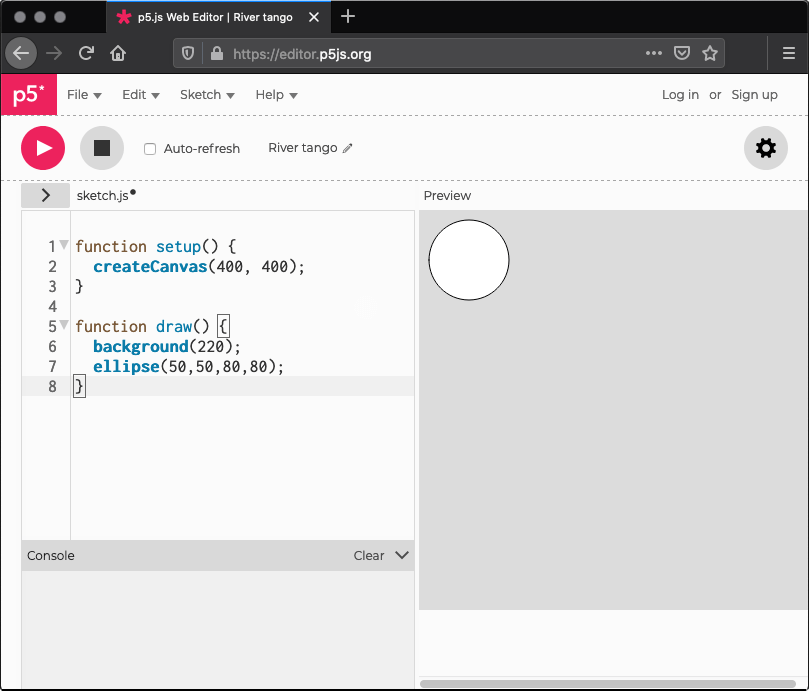
You can now start drawing, for example a circle. Add the following line to the draw function, on a new line between the last semicolon and the closing curly bracket:
ellipse(50,50,80,80);
Run the code by pressing the Play button. You should now see an ellipse. Its center is 50 50 pixels over from the left and 50 pixels down from the top. It has a width of 80 pixels and a height of the same size, making it a circle.
Let's now make a sketch that's a little more exciting. Remove the line you just added and put this instead:
if (mouseIsPressed) {
fill(0);
} else {
fill(255);
}
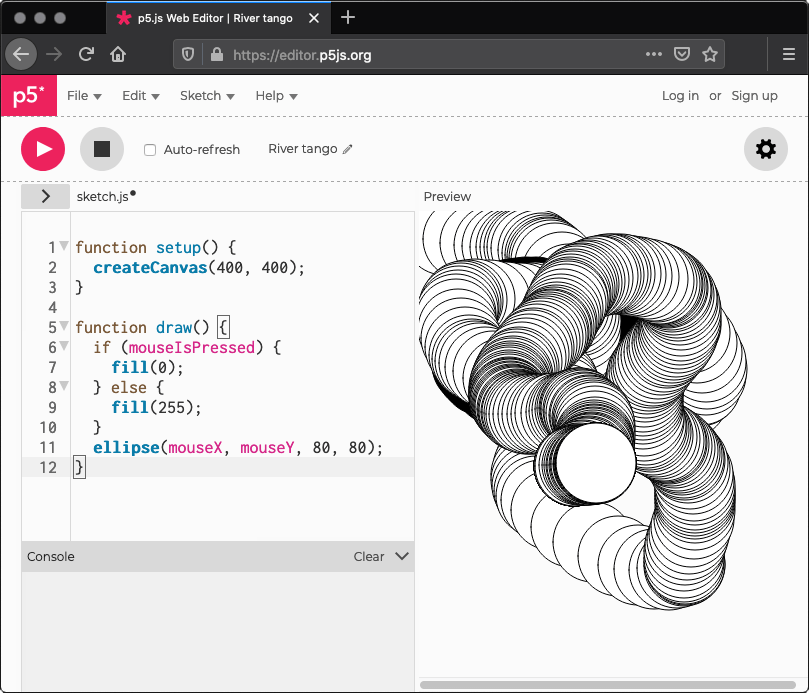
ellipse(mouseX, mouseY, 80, 80);
Now, remove the background(220);. Run the code. You should now see white circles at the position of the mouse. When a mouse button is pressed, the circle color changes to black.
Now stop watching videos and try it out yourself
Run your code and see the results!
Double click on p5.ipynb (menu, left) to start the notebook
Press Shift-Enter in a cell with code to run it.
Explanation further down this page.
How to Notebook
What is this thing?
This is a notebook. A notebook is a document where text is combined with code. You can run the code and see the results.
Click on the Play button in the menu at the top of the document to run the code. Alternatively, if a cell contains code, you can press shift-enter in the cell.
Why use notebooks?
We wanted you to view the code and run it and see the results - and then to tweak the code and rerun it. We believe this is the most fun way to learn.🎈
We also wanted you to do the coding right here, on this site. We did not want you to have install software. So we looked for something that had all the required software in it. Notebooks can contain all you need - allowing you to start coding right away. In this case, the notebook is running on another site and connected to this one via an iframe.
How many notebooks are there?
There is currently only one. It has some elementary examples using p5.js. In the future, we may add more, possibly also in other programming languages such as the Python libraries DrawBot or Turtle. Come help us write one! Or write one yourself and share your work!
P5 notebook
Technically speaking, it is a Jupyter Notebook environment for p5.js kernels running in the browser, powered by JupyterLite. Here is the source file. Here is a sandbox.
One more video
This video shows some simple things you can do with p5.js. Try this in a notebook!
Some technical details
Jupyter Notebooks
The notebook on this page is a Jupyter Notebook. This is a web-based interactive computing platform that combines texts with live code and visualizations. Jupyter Notebooks support Python as well as other programming languages such as JavaScript. This means we can use them for a wide variety of examples of creative coding.
Can I run Jupyter notebooks myself?
There are many ways to run Jupyter notebooks. Some of them require you to install software to run the notebook itself, and then other software to run the code in the notebook. Download the notebook here if you want to go down that road. Another way is to use Binder.
What is Binder?
Binder is a service for running a notebook in its own dedicated online environment. It allows you to view and share Jupyter Notebooks without requiring any local installations. Click here to interact with this notebook on Binder.
Languages and libraries
What are libraries?
Libraries are collections of functions to make the computer do specific things, in our case create interesting or stunning visuals. If you use a library, someone else did the heavy lifting of creating a function for you. There are many, many libraries from many, many programming languages that can be used for visualization or other artistic purposes. We list only a few here.
JavaScript
JavaScript is a programming language. It is often used to make websites interactive. Examples of JavaScript libraries that can be used for creative coding are p5.js that we are using above, Paper.js and D3.js (which comes with its own notebooks, Observable.
Python
Python is another programming language. It is used in a wide variety of ways, for example data science and machine learning. Examples of Python libraries that can be used for creative coding are Py5, which is, like p5.js based on Processing (itself a dialect of the programming language Java) as well as Turtle and Pygame.